¶ High Ping Help
If your ping is too high, you may diagnose it, and send a results to our Support for review.
- Download and install PingPlotter
- Type live.playernetgames.net in target field
- Click the green play button to start monitoring
- When the issue occurs, click File > Share > Create Share page, and send link to our Support.
If the high ping issue is common, try starting PingPlotter before the problem happens, and stop it after the issue appears.

To restart session you can click black down arrow and choose "Reset and Restart" or use [CTRL] + [R].
¶ In-Game Ping Diagnostic Tool
The game also provides a built-in tool for capturing ping and performance data without needing external software.
To open the tool, type /ping in the in-game chat. This will display the statistics window. Click Start Capture to begin recording data. Play normally while the tool collects information in the background. When the issue occurs or after a sufficient amount of time has passed, click Send Logs, then click Stop Capture. The collected trace logs will be automatically sent to the developers for analysis.,
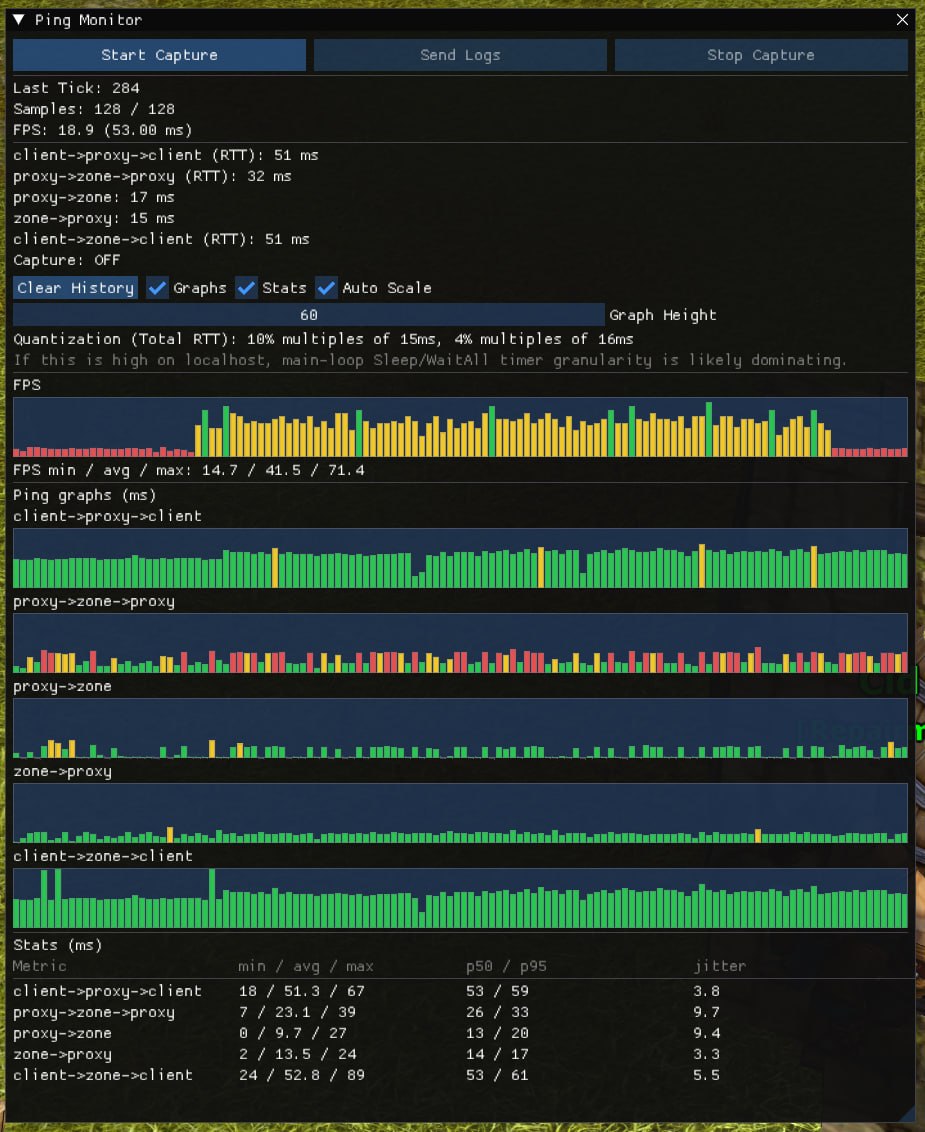
Also the window can be minimized while capturing data so it does not interfere with gameplay.
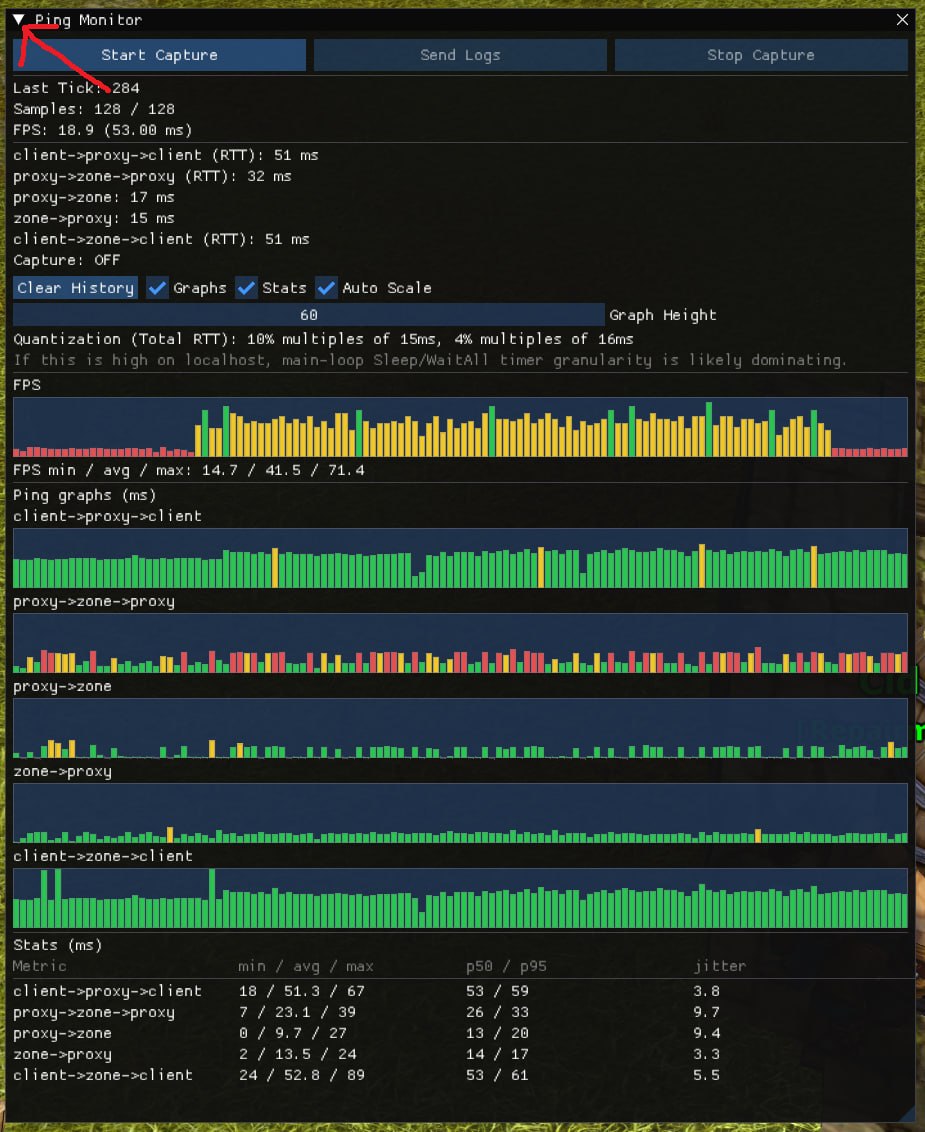
Note:
If possible, start capturing before the issue happens and stop it shortly after the problem appears, similar to how PingPlotter traces are recorded. This will give us the best result.
¶ aaDebug Addon
The addon aaDebug is used to display real-time Ping and FPS charts over time. This tool helps identify early-stage ping fluctuations before they become major issues. It is more convenient than using Ctrl + X alone (although both should be used together).
aaDebug is a simple first step for diagnosing performance issues, especially for players who prefer an easier method before moving on to PC-based debugging tools.